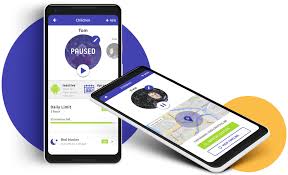
The best apps to limit screen time help you set boundaries for device use, fostering healthier digital habits for both children and adults. These tools offer features like usage tracking, app blocking, and scheduled downtime to regain control over your day.
Understanding Screen Time Limits
What exactly is screen time? It’s the amount of time someone spends using a device with a screen. This includes phones, tablets, computers, and even TVs.
For adults, it can be a bit more flexible. We use devices for work, learning, and staying connected. But even for us, too much screen time can lead to tired eyes, poor sleep, and less time for other important things.
For kids, managing screen time is even more crucial. Their brains are still growing. Too much time on screens can affect their development, their schoolwork, and their social skills.
It can also impact their physical health. Kids might become less active. They might have trouble focusing or sleeping well.
Setting limits is not about being strict; it’s about helping them build healthy habits for life.
Why is this a challenge? Well, apps are designed to be engaging. They use smart tricks to keep you hooked.
Think about notifications, personalized content, and rewards. These things are made to grab your attention. It’s easy to get caught in a loop of checking your phone “just one more time.” This is true for everyone, not just kids.
It’s a battle against very clever design.
So, how do we fight back? We use tools designed to help us. These are often called screen time apps or parental control apps.
They act like a helpful guide. They remind you when it’s time to stop. They can even block access to certain apps or the device altogether at set times.
This takes the willpower out of the equation. It helps create structure in a world that often feels unstructured when it comes to digital use.
My Own Struggle with Screen Time
I remember one evening vividly. It was late, maybe 11 PM. I was supposed to be winding down for bed.
Instead, I was deep down a rabbit hole on social media. Hours had passed without me even noticing. My eyes felt dry, my head was fuzzy, and I knew I wouldn’t sleep well.
I felt this wave of annoyance at myself. I’d told myself I’d read a book. I’d promised myself a good night’s sleep.
But the glowing screen had won again. It felt like a tiny, personal defeat. That feeling of wasted time and the dread of a restless night was a wake-up call.
It wasn’t just a one-off thing. I noticed this happening more and more. During the day, I’d pick up my phone to check one quick thing and suddenly twenty minutes were gone.
Work was piling up. I wasn’t as present with my family. The digital world was always calling, and I found myself answering more often than I should have.
It was like having a constant, low-level distraction humming in the background of my life. I knew I needed a way to create some distance, some clear boundaries, without completely cutting myself off from helpful technology.
The real breakthrough came when I started researching solutions. I realized I didn’t have to rely solely on my own willpower, which was clearly not enough. There were apps specifically designed to help.
I started experimenting with different ones. Some were too complicated. Others didn’t quite do what I needed.
But eventually, I found a few that really clicked. They helped me set limits, block distracting apps during work hours, and even schedule “digital detox” periods. It wasn’t magic, but it was a powerful step towards regaining control and making my screen time work for me, not against me.
How Screen Time Apps Help
Set Time Limits: These apps let you decide how much time can be spent on specific apps or the device overall.
Schedule Downtime: You can set times when certain apps or the whole device is blocked. This is great for bedtime or focus periods.
Block Unwanted Apps: Keep certain apps from being used during specific times or at all.
Monitor Usage: See where your screen time is going. This helps you understand your habits better.
Top Apps for Limiting Screen Time
Now, let’s talk about some of the actual tools you can use. There are many options out there, catering to different needs. Some are built into your device’s operating system.
Others are third-party apps you download. We’ll look at a mix.
Built-in Options: Digital Wellbeing & Screen Time
Most smartphones today come with built-in tools. These are often a good starting point. They are free and already on your device.
For Android Devices: Digital Wellbeing
Google’s Digital Wellbeing is a powerful tool. It shows you how much time you spend on your phone. It also tells you which apps you use the most.
You can set daily timers for specific apps. When your time is up, the app icon grays out. You can choose to ignore it, but it’s a clear visual reminder.
It also has a “Wind Down” mode. This mode turns the screen to grayscale and silences notifications. It helps you prepare for sleep.
I find the app timers very effective. Seeing an app gray out is a simple but strong cue. It makes me pause and ask if I really need to open it again.
It’s helped me cut down on mindless scrolling during work breaks. The “Wind Down” feature is also a game-changer for improving sleep. It’s a gentle way to signal to my brain that it’s time to switch off.
For Apple Devices: Screen Time
Apple’s Screen Time feature is similar. It’s available on iPhones and iPads. It gives you a detailed report of your device usage.
You can set “App Limits” for categories of apps (like Social Networking or Games). You can also set “Downtime.” Downtime lets you schedule a period where only allowed apps and phone calls are available. A really useful feature is “Always Allowed.” You can pick a few essential apps that will always be available, even during Downtime.
For families, Screen Time is excellent. You can manage your kids’ devices from your own iPhone. This means you can set limits and view reports for their devices without needing to access their phones directly.
I’ve seen parents use this to ensure their kids aren’t on their phones late at night or during family dinners. It’s a robust system for managing family digital habits.
Contrast: Built-in vs. Third-Party Apps
Built-in:
- Pros: Free, already installed, good integration with the OS.
- Cons: May have fewer advanced features, might be easier for tech-savvy kids to bypass.
Third-Party:
- Pros: Often offer more advanced features, stronger blocking, cross-platform support, more customizable.
- Cons: Can cost money, require installation on multiple devices, might have privacy concerns depending on the app.
Popular Third-Party Screen Time Apps
Sometimes, the built-in options aren’t enough. Or you might need features that work across different devices (like an iPhone and an Android tablet). That’s where third-party apps come in.
1. Freedom
Freedom is a powerful app for blocking distracting websites and apps. It works on Mac, Windows, iOS, and Android. You can create custom blocklists.
You can schedule these block sessions. For example, you can set it to block social media sites from 9 AM to 5 PM on weekdays. You can even block the internet entirely if you need to focus.
It’s designed for productivity.
What I like about Freedom is its strictness. Once a session starts, it’s hard to get around it. This is great when you really need to buckle down and get work done.
I’ve used it during writing sprints. It forces me to stay on task. The cross-platform nature is also a big plus.
I can block distracting apps on my phone and my laptop at the same time.
2. Qustodio
Qustodio is a comprehensive parental control app. It’s great for families. It offers screen time limits, app blocking, web filtering, and location tracking.
You can set daily time limits for devices. You can also block specific apps. It provides detailed reports on your child’s activity.
It’s designed to give parents peace of mind.
One of Qustodio’s strengths is its family dashboard. Parents can see reports for all their children in one place. This makes it easy to manage multiple kids’ screen time.
It also has a “Panic Button” feature for kids. If they feel unsafe, they can alert their parents. This adds an extra layer of safety.
3. OurPact
OurPact is another popular family-focused app. It allows parents to schedule device usage. You can set daily schedules for internet access and specific apps.
It offers features like remote app blocking and location tracking. It also has a “Family Messenger” to communicate with kids.
OurPact’s scheduling feature is very intuitive. You can visually set blocks of time for different activities. For example, school time might have educational apps allowed, while after school allows games.
It’s a very visual and easy way to manage screen time rules for kids. Many parents find this visual calendar approach helpful.
4. Forest
Forest takes a different, more gamified approach. When you want to focus, you plant a virtual tree. If you leave the app to use another distracting app, your tree dies.
The longer you stay focused, the bigger and healthier your tree grows. Over time, you can grow a whole forest. It’s a delightful way to encourage focus.
The Forest app is incredibly motivating for me personally. It uses positive reinforcement. Instead of punishing you for getting distracted, it rewards you for staying focused.
I love seeing my virtual forest grow. It’s a constant reminder of the time I’ve dedicated to being productive. They also partner with a real-life tree-planting organization, which adds another layer of purpose to using the app.
Quick-Scan Table: App Features
| App | Primary Use | Key Feature 1 | Key Feature 2 |
|---|---|---|---|
| Digital Wellbeing (Android) | Personal Usage Tracking | App Timers | Wind Down Mode |
| Screen Time (iOS) | Personal & Family Use | App Limits | Downtime |
| Freedom | Productivity Blocking | Website & App Blocking | Scheduled Sessions |
| Qustodio | Family Safety | Comprehensive Reporting | App & Web Filtering |
| OurPact | Family Scheduling | Visual Scheduling | Remote App Control |
| Forest | Focus Gamification | Plant Virtual Trees | Focus Rewards |
Choosing the Right App for You
With so many choices, how do you pick the best one? It really depends on your situation and what you need most. Think about these questions:
Who is this for? Are you trying to manage your own screen time, your kids’ time, or both? If it’s for kids, look at parental control features. If it’s for yourself, focus on productivity and habit building.
What devices do you use? Make sure the app works on all your devices. If you have both Apple and Android products, you’ll need an app that supports cross-platform use. Built-in tools only work on their native operating systems.
What features are most important? Do you need strict blocking for work? Or are you looking for gentler reminders? Do you want detailed reports, or just simple time limits?
Some apps excel at blocking, others at tracking, and some at positive reinforcement like Forest.
What’s your budget? Many apps offer free versions with basic features. Paid versions often unlock advanced controls, more devices, or detailed reporting. For families, a subscription service like Qustodio or OurPact might be a good investment.
I often recommend starting with the built-in tools. See how far they get you. If you find yourself needing more power, then explore the third-party options.
For example, if you need to block specific websites on your work computer, Freedom is a great choice. If you’re a parent wanting to monitor your child’s entire digital life, Qustodio or OurPact are strong contenders.
Scenario Match: Find Your App
You need to focus on work and block social media: Freedom or your device’s built-in Digital Wellbeing/Screen Time app.
You’re a parent needing to set limits for your child: Qustodio, OurPact, or your device’s built-in Screen Time (for iOS).
You want a fun way to stay off your phone: Forest.
You use both Apple and Android devices and need unified control: Freedom, Qustodio, OurPact.
Beyond Apps: Building Healthy Digital Habits
While apps are fantastic tools, they are just that—tools. They help you build good habits, but they don’t replace them entirely. Real change comes from understanding your own behavior and making conscious choices.
Understanding Your Triggers
What makes you reach for your phone? Is it boredom? Stress?
A notification sound? Identifying these triggers is the first step. When you feel the urge to pick up your phone, pause.
Ask yourself why. If it’s boredom, find another activity. If it’s stress, try a short walk or deep breathing exercises.
Recognizing these moments gives you a chance to choose a different action.
Creating Device-Free Zones and Times
Designate certain areas or times as “no-phone zones.” The dinner table is a classic example. Bedrooms are another. Making your bedroom a screen-free sanctuary can significantly improve sleep quality.
Try putting your phone away an hour before bed. Charge it outside your bedroom if needed. This simple change can make a huge difference.
My family has a “phone basket” in the living room. During dinner, everyone puts their phone in the basket. It forces us to talk and connect.
It sounds simple, but it has genuinely improved our family meals. We share stories and listen to each other without digital interruptions. It’s created a much more engaged atmosphere.
Prioritizing Real-World Activities
Make time for activities that don’t involve screens. Read books. Go for walks in nature.
Spend time with friends and family in person. Pick up a hobby you enjoy. When your life is rich with offline experiences, the pull of digital distractions lessens.
You have less “empty” time that might otherwise be filled by scrolling.
I started going to a local park for a short walk every afternoon. It wasn’t long, maybe 15-20 minutes. But that little break outdoors helped reset my mind.
It was a physical separation from my screen. It reminded me that there’s a whole world outside my digital bubble. This helped me feel more refreshed and less reliant on my phone for entertainment or escape.
Tips for Digital Detox
- Schedule Regular Breaks: Set alarms to remind yourself to step away from screens.
- Turn Off Non-Essential Notifications: Fewer pings mean fewer interruptions.
- Use Grayscale Mode: Makes your phone less visually stimulating.
- Delete Time-Wasting Apps: If an app is a major culprit, consider removing it temporarily or permanently.
- Communicate Your Intent: Let friends and family know you’re trying to reduce screen time.
When to Worry About Screen Time
It’s good to have a goal for limiting screen time. But it’s also important to know when it’s more than just a habit you want to change. For children, you might want to look out for:
Developmental Delays: If a child is very young and spending excessive time on screens instead of interacting with people and the environment, it can affect language development, social skills, and motor skills.
Academic Struggles: If a child’s grades are dropping, and they seem unable to focus on homework because of screen use, it’s a red flag.
Sleep Problems: Difficulty falling asleep, frequent waking, or feeling tired all the time can be linked to late-night screen use. The blue light from screens can disrupt natural sleep patterns.
Social Isolation: If a child or adult is withdrawing from friends and family to spend more time online, it can indicate a problem.
Physical Health Issues: Excessive screen time can contribute to eye strain, headaches, poor posture, and a lack of physical activity, potentially leading to weight gain.
Emotional Changes: Increased irritability, anxiety, or depression linked to screen use, or feeling distressed when unable to access devices, are important signs.
For adults, the signs can be similar. If your screen time is negatively impacting your job performance, your relationships, your sleep, or your mental and physical health, it’s time to take serious steps. Apps can help, but sometimes professional guidance might also be beneficial.
Don’t hesitate to seek help if you’re struggling.
Quick Fixes and Tips for Immediate Impact
Want to make a small change right now? Here are some quick wins:
Disable Push Notifications: Go into your phone’s settings and turn off notifications for non-essential apps. This is a huge one. You’ll be interrupted far less often.
Rearrange Your Home Screen: Move distracting apps off your main home screen. Put them in folders or on a secondary screen. This adds an extra step to opening them, making you think twice.
Set a “No-Phone” Meal Rule: Start with just one meal a day. Put all phones away during that time. Even a 15-minute device-free meal can be beneficial.
Use Your Phone’s Grayscale Mode: On both Android and iOS, you can turn your screen to black and white. This makes it much less appealing. It’s a simple setting change that has a big impact.
Schedule Your First 30 Minutes: Plan what you’ll do with the first 30 minutes of your day without looking at your phone. Maybe it’s stretching, drinking water, or reading a physical book.
Stacking Habits for Screen Time Control
Pair with Hydration: Drink a glass of water every time you put your phone down for a set period.
Pair with Movement: Do 10 squats or stretches before picking up your phone again after a break.
Pair with Gratitude: Before opening a social app, think of one thing you are grateful for.
Frequently Asked Questions About Screen Time Apps
Are screen time apps safe to use?
Most reputable screen time apps are safe. Always download from official app stores (Google Play Store, Apple App Store). Read reviews and check the app’s privacy policy.
For family apps, ensure they have robust security measures to protect your data and your children’s data.
Can I use screen time apps on multiple devices?
Yes, many third-party apps like Freedom, Qustodio, and OurPact allow you to manage multiple devices under one account. Built-in options like Screen Time (iOS) can also manage linked family devices. Check the app’s subscription details to see how many devices are covered.
How do I prevent kids from bypassing screen time apps?
This can be a challenge. Ensure you set strong passwords for the app itself and for your device settings. For younger children, parental controls like “Guided Access” on iOS or “App Pinning” on Android can help.
For older kids, open communication about why limits are in place is often more effective than strict blocking.
Is it okay for adults to use screen time apps?
Absolutely! Many adults find apps like Freedom or Forest incredibly helpful for improving focus and productivity. Apps like Digital Wellbeing and Screen Time are also designed for personal use.
It’s all about managing your digital habits healthily.
Do these apps drain my battery?
Some apps, especially those that constantly monitor usage in the background, might use a bit more battery. However, most modern apps are optimized for efficiency. Built-in features like Digital Wellbeing and Screen Time are usually very efficient as they are part of the operating system.
What’s the difference between screen time limits and app blocking?
Screen time limits set a total amount of time you can use an app or device per day. App blocking prevents an app from being used altogether, either for a set period or until you manually unblock it. Many apps offer both features.
Conclusion: Taking Control of Your Digital Life
Managing screen time can feel overwhelming, but you have more power than you think. By understanding your habits, using helpful apps, and building conscious offline activities, you can create a healthier balance. These tools are here to support you.
They help you reclaim your time and attention for what truly matters. Start small, be patient with yourself, and celebrate your progress.